Thought Flow

Tag: Ubuntu

  • Simple website visitor stats and location with GoAccess

    I do not use cookies or browser trackers (like Google Analytics) on any of my personal websites to track visitor information.

    From time to time however, it is nice to get an idea of the amount traffic to my sites, including what pages get viewed the most.

    I use the following one-liner for this:

    sudo zcat -f /var/log/nginx/access.log* | goaccess --log-format=VCOMBINED --geoip-database dbip-city-lite-2022-09.mmdb

    Read on below to see how I made this work.

    Introduction

    I host my websites on a small Hetzner VM and use nginx as web server and/or reverse proxy for PHP (for WordPress sites)

    The default server logs for nginx are enough to count basic server visits, and for this purpose, I use GoAccess.

    GoAccess usually works out of the box like this:

    goaccess /var/log/nginx/access.log

    For me, this command is a bit limited though, specifically:

    1. It only includes the latest access log. Nginx rotates the logs and the older ones get stored in gzip’ed files. Ideally, these should be included.
    2. The default log format in Nginx seems to not include the domain (e.g. “davidlebech.com”) so if there are multiple sites on the same server, their views will be mixed.
    3. It is not possible to see where people are from in the world.

    I solved all three earlier this year by making some simple changes to the nginx config and the command itself.

    Use combined log format

    First, change the nginx configuration in /etc/nginx/nginx.conf with the following lines:

    log_format vcombined '$host:$server_port '
            '$remote_addr - $remote_user [$time_local] '
            '"$request" $status $body_bytes_sent '
            '"$http_referer" "$http_user_agent" "$gzip_ratio"';
    access_log /var/log/nginx/access.log vcombined;

    This tells nginx to use the “combined log format with virtual host” for the access log files. The logs now include the domain, thereby solving issue 2 from above.

    Ensure IP addresses are correct from Cloudflare

    In order to get location, we can use the logged IP address of people to look up in a local database. To enable this, there is an important extra step to take when using Cloudflare as a proxy. By default, the logged IP are the Cloudflare server’s IPs. The server needs to know where to get the real IP address of the visitor from.

    Here’s the official guide from Cloudflare. Here’s my short version:

    1. Copy the list of IP addresses from Cloudflare. Both the IPV4 and IPV6 addresses.
    2. Create a new file under /etc/nginx/cloudflare.conf and paste all the addresses, one per line.
    3. Prepend each IP address line with set_real_ip_from
    4. Add to the end of the file:
      real_ip_header CF-Connecting-IP;
    5. In /etc/nginx/nginx.conf, add:
      include /etc/nginx/cloudflare.conf;

    This is the entire content of my current /etc/nginx/cloudflare.conf file which works as of September 2022:

    set_real_ip_from 103.21.244.0/22;
    set_real_ip_from 103.22.200.0/22;
    set_real_ip_from 103.31.4.0/22;
    set_real_ip_from 104.16.0.0/13;
    set_real_ip_from 104.24.0.0/14;
    set_real_ip_from 108.162.192.0/18;
    set_real_ip_from 131.0.72.0/22;
    set_real_ip_from 141.101.64.0/18;
    set_real_ip_from 162.158.0.0/15;
    set_real_ip_from 172.64.0.0/13;
    set_real_ip_from 173.245.48.0/20;
    set_real_ip_from 188.114.96.0/20;
    set_real_ip_from 190.93.240.0/20;
    set_real_ip_from 197.234.240.0/22;
    set_real_ip_from 198.41.128.0/17;
    set_real_ip_from 2400:cb00::/32;
    set_real_ip_from 2606:4700::/32;
    set_real_ip_from 2803:f800::/32;
    set_real_ip_from 2405:b500::/32;
    set_real_ip_from 2405:8100::/32;
    set_real_ip_from 2c0f:f248::/32;
    set_real_ip_from 2a06:98c0::/29;
    
    # use any of the following two
    real_ip_header CF-Connecting-IP;
    # real_ip_header X-Forwarded-For;

    Use geolocation for IP

    In order to translate an IP address to a rough location, I am currently using db-ip.com’s free geolocation database. It updates monthly, and e.g. the September 2022 version can be fetched like this:

    wget https://download.db-ip.com/free/dbip-city-lite-2022-09.mmdb.gz
    gunzip dbip-city-lite-2022-09.mmdb.gz

    With all these pieces together (detecting real IPs, using full log format and with a local geo location database), analyzing the last 14 days of visitor information can be done with the one-liner from the beginning of the post:

    sudo zcat -f /var/log/nginx/access.log* | goaccess --log-format=VCOMBINED --geoip-database dbip-city-lite-2022-09.mmdb

    Conclusion

    In the last 14 days, I had 98 thousand request to my server, and 57% of this was from crawlers — so my site is not popular :-)

    As a final note: I don’t aggregate the above information, and the data is deleted automatically after 14 days.
  • Clean up harddrive space on Ubuntu Server with journalctl

    After running for a while, an Ubuntu server tend to get bloated with… stuff. One particularly weird one is the disk usage of a bunch of /var/log/journal/* entries that hog a lot of space.

    In my case, 2GB. This is significant on a machine with just 20GB of space. You can see their disk usage with:

    journalctl --disk-usage

    I honestly don’t know what the journals are for, but anyway, there is a quick solution to clean it up in an easy way:

    journalctl --vacuum-size=100M

    This command will “vacuum” the journal logs and free up space. More info in this Stack Exchange answer.

  • Ubuntu — so ready for developer time

    In my previous post, I said that Ubuntu is not ready for primetime. I still think this is the case for most people. However, since writing the post I have acquired a Dell XPS 13 with Ubuntu 12.04 pre-installed (they call it a “developer edition“). Let me tell you, it is an absolute joy to work with and there have been no problems so far. Everything just works.

    Finally, I should note that I have been using Ubuntu extensively for development in recent years. I have just usually been running it in a virtual machine where there is no “weird” hardware present (such as optimus). My server that hosts this website is also running Ubuntu. So maybe it sounds a little harsh when I say it is not ready for primetime because it is definitely ready for developer time.

  • Ubuntu — not ready for primetime

    I wanted to install Ubuntu on my Dell XPS 15 to try out Steam for Linux. This was not the enjoyable experience I had hoped for since a lot of things did not work perfectly out of the box. Below are some steps I had to take to get the system going.

    Fixing the graphics

    My laptop has NVIDIA optimus technology which automatically switches between Intel’s HD 4000 graphics card and the faster NVIDIA Geforce GFX 640. Apparently, optimus support on Linux is not good.

    In Ubuntu, I had no 3D support and the graphics would spontanously turn off after a restart so I was presented with only the terminal. Fortunately, there are some nice people that are maintaining a project called Bumblebee which adds support for optimus in Linux. After installing this, my graphics system has been fairly stable. Just do this:

    sudo add-apt-repository ppa:bumblebee/stable
    sudo add-apt-repository ppa:ubuntu-x-swat/x-updates
    sudo apt-get update
    sudo apt-get install bumblebee bumblebee-nvidia linux-headers-generic
    

    I also recommend the primusrun package:

    sudo apt-get install primus
    

    With the above installed, it is possible to run programs specifically with the NVIDIA card like so:

    optirun glxspheres
    primusrun glxspheres
    

    Fixing the mouse

    Yes, the mouse did not work. Well, the touchpad worked but my wireless Logitech M705 mouse did not. The problem, it turned out, was the Logitech Unifying Receiver. It is a small USB thing that is plugged in for a mouse and external keyboard and is used for many Logitech devices. After searching for many hours, somewhere on some forum, I found the following simple command-line trick:

    #!/bin/bash
    while :; do dmesg|grep logitech-djreceiver|tail -1|grep -q -c "failed with error -32" || exit; echo -n `date`" Driver Reload" ; rmmod hid_logitech_dj ; modprobe hid_logitech_dj ; dmesg|grep logitech-djreceiver|tail -1 ; sleep 1; done
    

    You can also find it as a github gist here.

    The script simply tries to reload the receiver with modprobe and it works. Sometimes after one loop, sometimes after ten. And it is a pain in the ass to run it at every startup.

    Getting Steam to work

    The real reason I wanted to try Ubuntu again was the recently released Steam for Linux client. After installing Bumblebee, Steam actually installed and ran quite well. However, it is worth taking a look at this guide for running programs with optirun/primusrun.

    Conclusion

    In the above, I left out the fact that before finding the solutions, I had to reinstall Ubuntu three times because of playing around with graphics drivers that broke the system until finally figuring out about the Bumblebee project. This is definitely something most users would not want to mess around with. Not only that but my mouse is still not working after a restart and sometimes I am still greated with the terminal login instead of a graphics login. It is quite random, actually.

    I should also note that I have had similar experiences with Ubuntu in the past. I love Linux but it just does not work like Windows or Mac. As soon as you are faced with a weird hardware problem, good luck fixing that without the command-line!

    Therefore, I have to recommend not installing Ubuntu at the current time — at least if you have dual graphics card with optimus technology or you are not willing to spend hours trying to fix things. It is a big shame because the Linux platform and Ubuntu in particular shows great promise. But it is not for everyone. It is not ready for primetime.

  • Prevent slow Linux performance on VirtualBox

    Here is a quick tip if you are having slow performance with Linux running on VirtualBox:

    Assign at least two processors to the Linux instance

    Some background… My laptop came with Windows 7. I prefer to use Linux (currently Ubuntu) when developing and I really dislike dual-booting so installing Ubuntu side-by-side with Windows is not my preferred choice, mainly for two reasons:

    • I like to play games from time to time. Ubuntu is ok for this but Windows is still the winner.
    • Dell’s BIOS updates are released in .exe format and although I could probably run these from Ubuntu, I would not trust such critical updates to a non-native environment. Other drivers like graphics card drivers are also better supported in Windows.

    So instead of replacing Windows or dual-booting I use VirtualBox to create a virtual machine environment for Ubuntu to run in. I have been running Ubuntu with 4GB of ram and 2 processors for a while now and it runs incredibly fast. For example, it boots in about 4 seconds.

    Recently, I wanted to try out other Linux distributions such as Fedora, Debian, Xubuntu and Linux Mint and VirtualBox is perfect for testing. I gave each of these 1GB ram and 1 processor. They were all incredibly slow, even during installation. It felt like they ran more than 10 times slower than my Ubuntu installation. After thinking about it for a while, I tried simply increasing the processor count from 1 to 2 on each Virtual machine. Voila, they all had the same fast performance as my original Ubuntu installation. They are fast… very very fast!

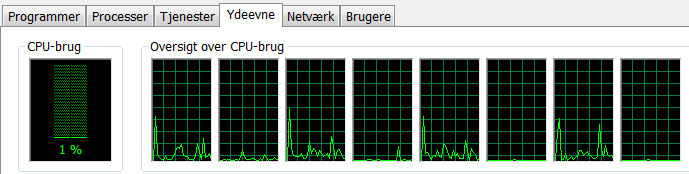
    So why did the processor count matter so much? I do not really know how to dive in and test it but my theory is that assigning just one virtual processor in VirtualBox is like assigning just one thread of one processor, if your processor is made by Intel and has Hyper-Threading technology. As you can see below, Windows Task Manager shows 8 processors even though there are actually only 4 (I have an Intel Quad Core i7-3612QM) so Windows seem to think that I have 8 processors. I know, I know, of course Windows knows about hyper-threading but it still seems to treat each thread as an independent processor.

    Windows task manager processors